[mntcrl26] NFZ - SD Card Forensics: Uncovering Hidden Thumbnails
TL;DR: I analyzed an SD card image, from a DJI Mavic 3 drone, recovered deleted files, and identified an unusually large thumbnail embedded within a JPEG. I extracted this hidden thumbnail to reveal the flag.
Initial SD Card Analysis
I started by examining the provided sdcard.img file (2GB). I used fsstat to get an overview of the file system.
I ran fsstat on the image.
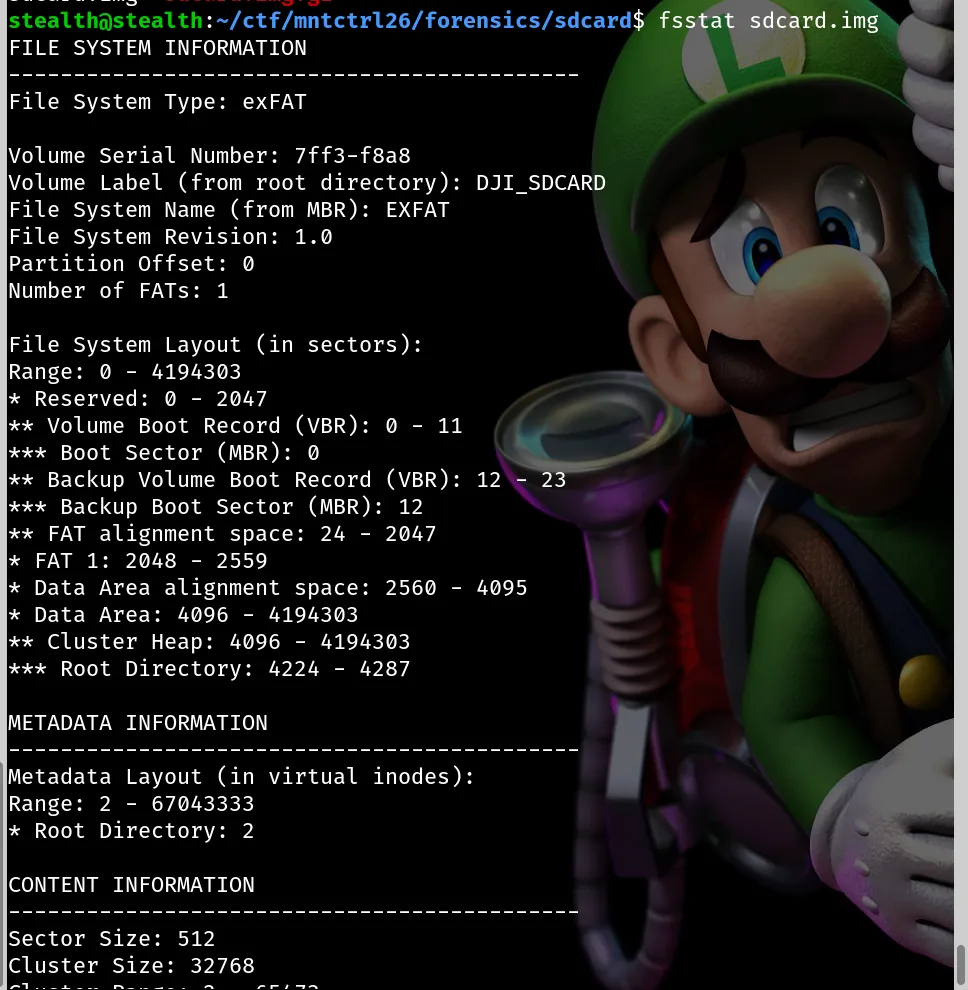
The output showed an exFAT file system with a volume label of DJI_SDCARD. This suggested the image came from a DJI drone.
Next, I used fls to list the files and directories present on the SD card.
I listed the files on the SD card.
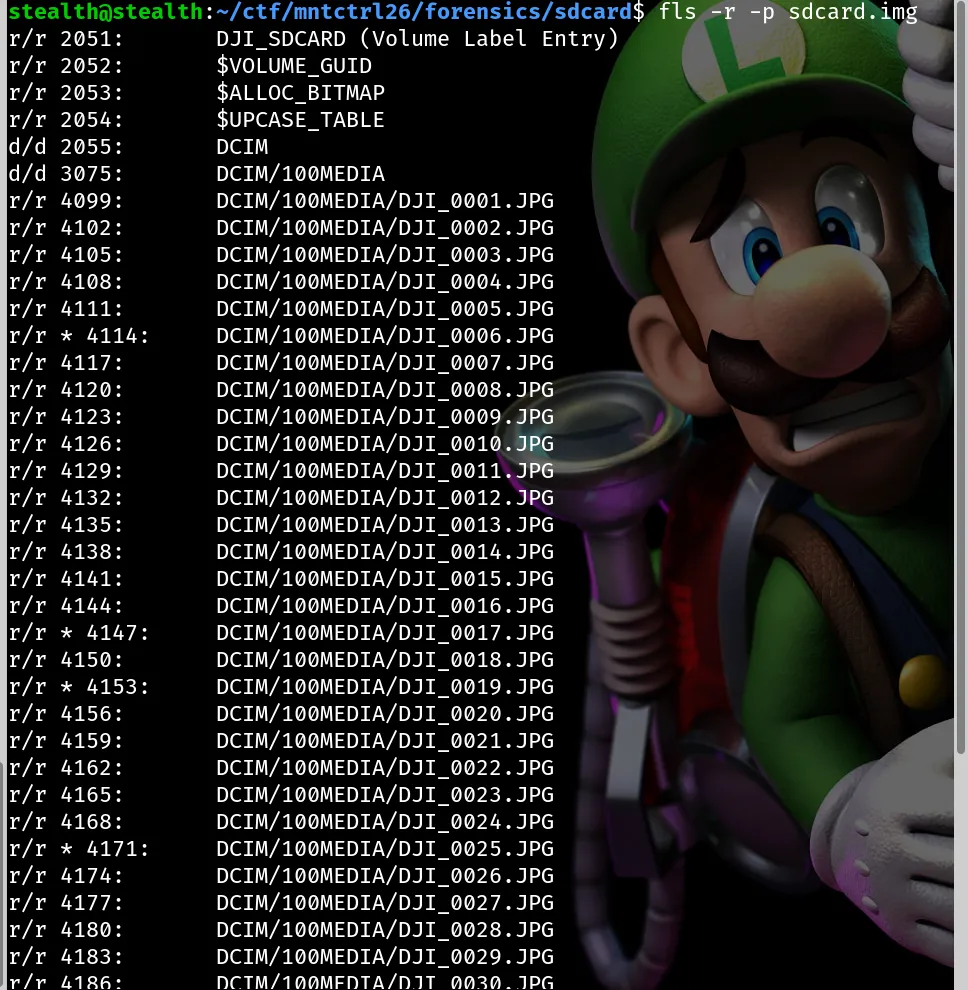
The listing showed a DCIM directory containing many DJI_00XX.JPG files, which further supported the drone origin theory.
File Recovery and Anomaly Detection
I needed to recover all files from the image, including any deleted ones. I created a new directory and used tsk_recover -e to extract everything, included the deleted pictures (the ones marked with * in the picture above).
I created a directory named estratto.
mkdir estrattoThen I recovered the files into it.
tsk_recover -e sdcard.img estratto/After recovering the files, I began analyzing them. I spent time comparing metadata across the images, looking for anything unusual. Initially, I thought the solution involved the GPS coordinates in the EXIF metadata, because NFZ stands for No-Fly Zone. However, this path turned out to be a rabbit hole. I eventually noticed that one specific image, DJI_0017.JPG, had a significantly larger thumbnail embedded within it compared to the others.
I used a script to check thumbnail sizes, which confirmed my suspicion.
#!/bin/bash

TARGET_DIR="mntctrl26/forensics/sdcard/path/to/images/"

echo "=== Thumbnail Sizes for all JPEGs ==="
echo -e "Filename\t\t\tThumbnail Length"
echo "--------------------------------------------------------"

exiftool -T -FileName -ThumbnailLength -r -ext jpg -ext jpeg "$TARGET_DIR" | sort
Extracting the Flag
I had two methods to extract the oversized thumbnail: using ImHex or exiftool.
Method 1: Using ImHex
I opened DJI_0017.JPG in ImHex. I searched for JPEG magic bytes (FF D8). I found the primary JPEG header at offset 0x0. Crucially, I found a second JPEG header (FF D8) at offset 0x240. This second block ended with the End Of Image (EOI) marker (FF D9) at offset 0x4C01. The size of this embedded section was approximately 18 KB.
I selected the bytes from offset 0x240 to 0x4C01 in ImHex. I then used the “Export as file” option to save this selection as a new JPEG file.
Method 2: Using Exiftool
The alternative, and quicker, method was to use exiftool. This tool can directly extract embedded thumbnails.
I ran the following command to extract the thumbnail image.
exiftool -ThumbnailImage -b DJI_0017.JPG > flag.jpgOpening flag.jpg revealed the flag: [REDACTED].
This challenge was a good exercise in forensic data recovery and identifying hidden data within common file formats.